Live Event Owner Guide
Complete guide for managing your live event with MikaMe
Step 1: Share Access
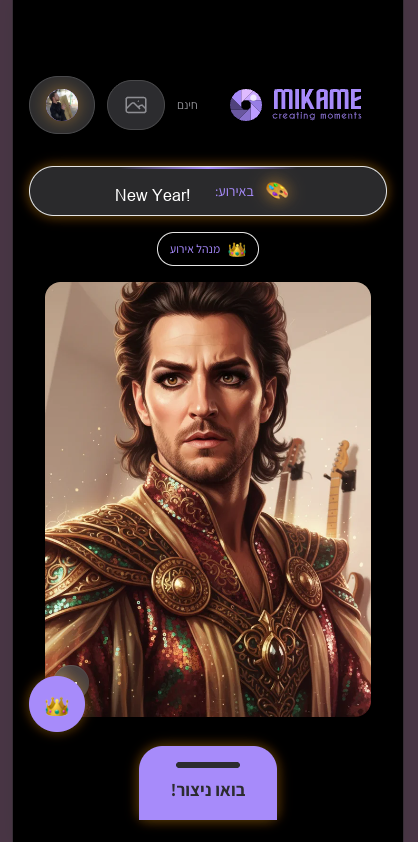
Distribute the Magic Link or display the QR Code so guests can start taking photos instantly. No app download required. You'll receive the QR code and magic link 24 hours before your event.
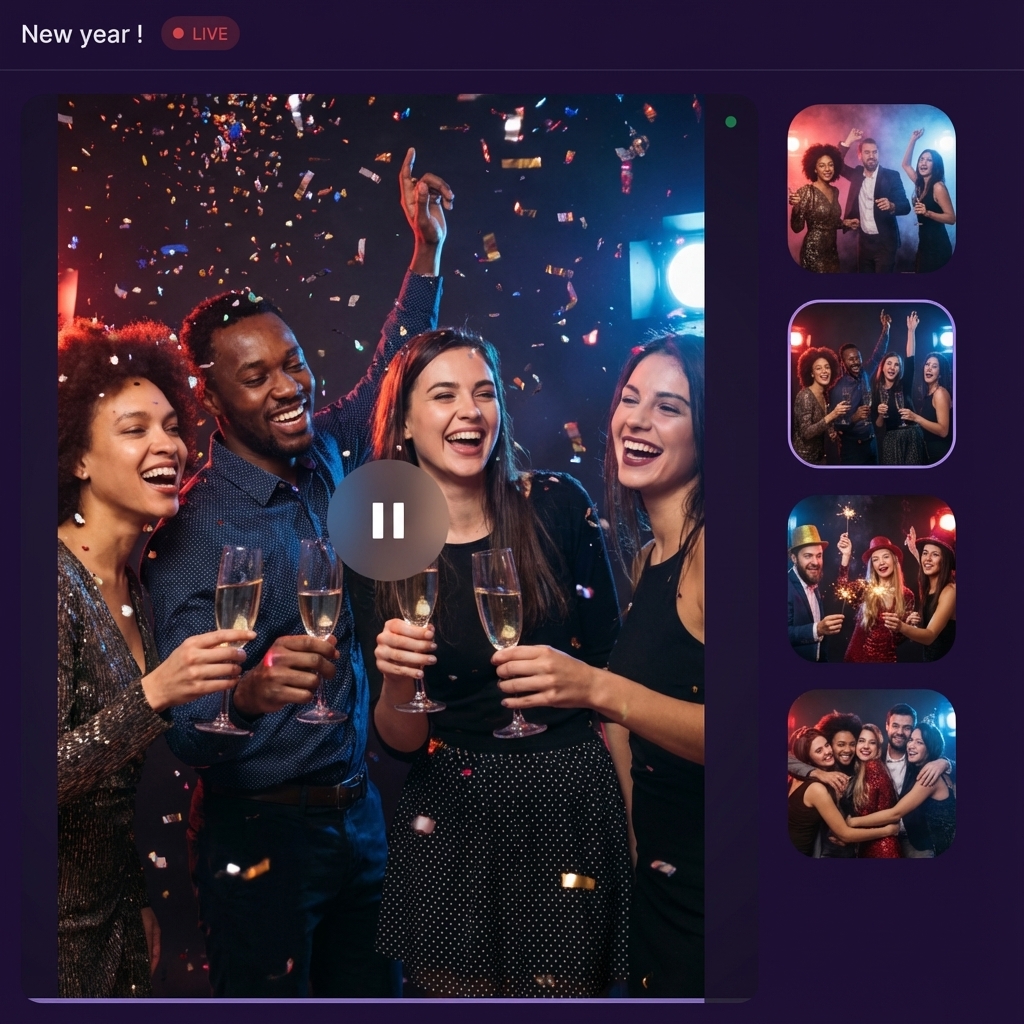
Step 2: Display Live Wall
Open the Live Gallery link on a big screen or projector to showcase photos in real-time as they are created. Guests can also view the live wall on their mobile devices.
Step 3: Control Event
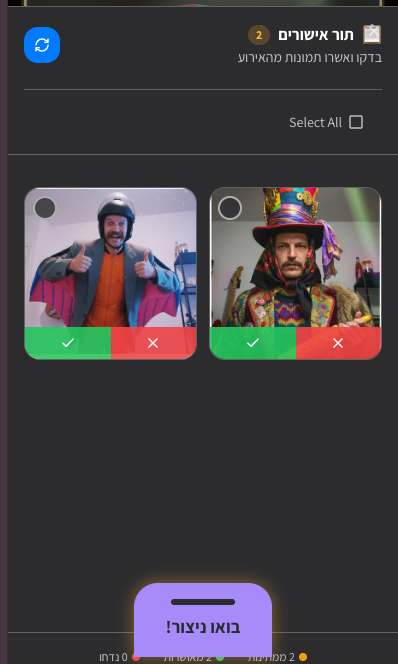
Approve or reject photos instantly from the approval queue, and stop the event with a single click. As the event owner, you have full control over all photos.
Owner Controls
Look for the Crown Icon - as the event owner, you have a special crown button that gives you full control over photos and the event itself.
- Approve photos to show on wall
- Delete inappropriate photos
- Stop event early if needed